Spring Fishing Deal — 10% Off  SHOP NOW

logologo
Home
Angler Deals
Products
About Us
Support
Blogs
HomeNewsCanFish Fishing CamX HD Lure Camera Tutorial Guide: Setting Up and Maximizing Your Fishing Experience
CanFish Fishing CamX HD Lure Camera Tutorial Guide

CanFish Fishing CamX HD Lure Camera Tutorial Guide: Setting Up and Maximizing Your Fishing Experience

First time to use CanFish Fishing CamX HD Lure Camera? This guide helps you to set up, use, and maximize your camera for the ultimate underwater fishing experience.

Are you ready to revolutionize your fishing trips with the CanFish Fishing CamX HD Lure Camera? This advanced underwater fishing finder allows you to see exactly what's happening beneath the water's surface, giving you an edge in locating fish and improving your technique. In this tutorial guide, we'll walk you through everything you need to know about using the Fishing CamX—from setup to best practices.


  • What's in the CamX Box?
  • Fishing CamX HD Lure Camera Step-by-Step Setup
  • How to Charge Fishing CamX Underwater Fishing Camera?
  • Fish Finder App Download & Usage for Fishing CamX
  • Fishing Cam X Gesture Control Tutorial
  • How to Connect the Fishing CamX to Your Fishing Rig?
  • How to Store Your CanFish Fishing CamX Camera After Use?


What's in the CamX Box?


The CanFish Fishing CamX HD Lure Camera comes with several essential components to ensure a smooth fishing experience:


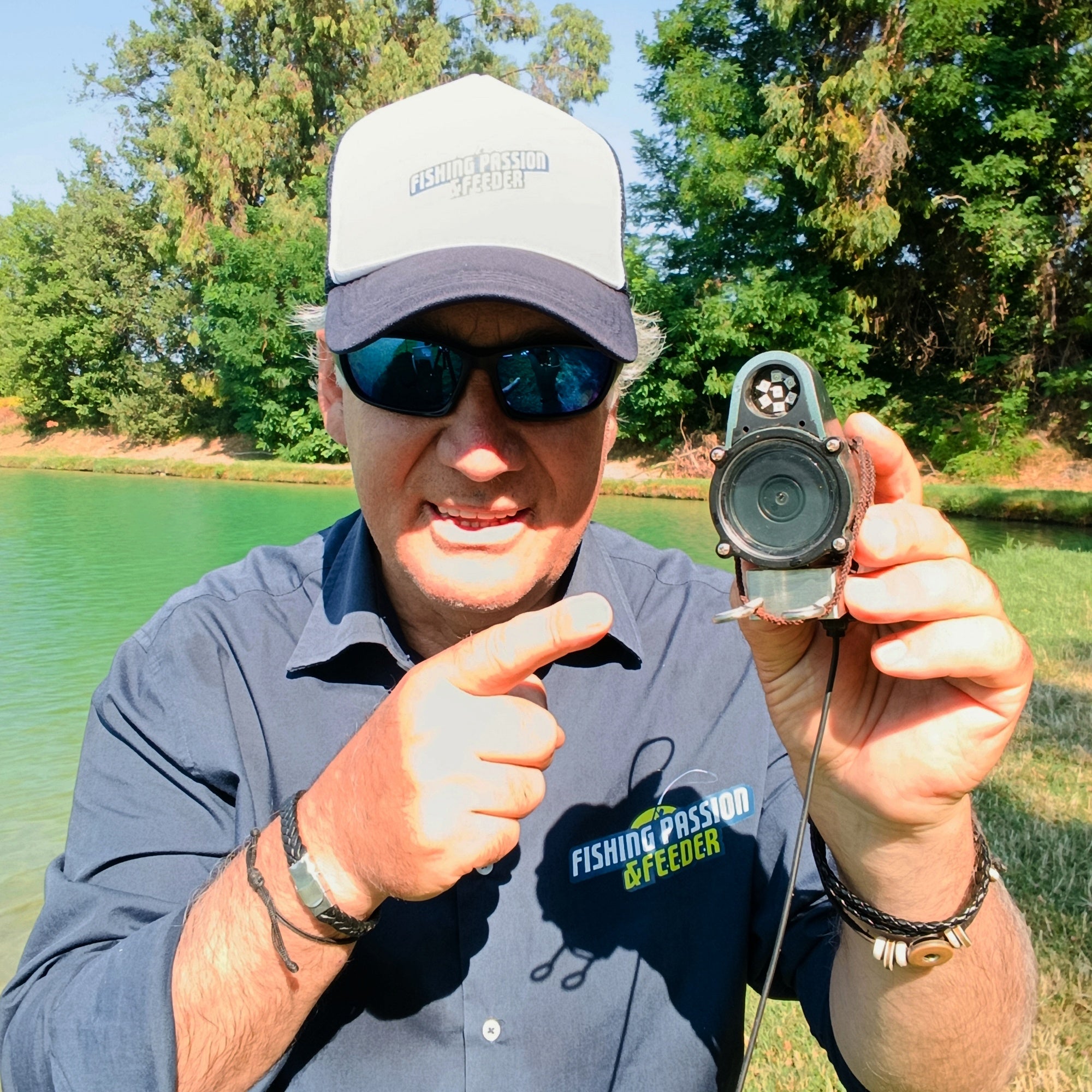
Fishing CamX Lure Camera: This is the main camera that attaches to your fishing rig. It features high-definition video and advanced sensors for clear underwater imagery.

Wireless Desktop Charger: Convenient for charging your fishing camera between uses.

Charging Cable: Use this cable to connect the camera to the wireless charger or a USB power source.

Buoyancy Ring: Attach this ring to the camera to ensure it floats, preventing loss if it's accidentally dropped into the water.

Datagram: This small but essential device allows data transfer between your camera and mobile app for real-time viewing.

 CanFish Fishing CamX HD lure camera accessories

Fishing CamX HD Lure Camera Step-by-Step Setup:


How to Charge Fishing CamX Underwater Fishing Camera?


Pre-Charge Recommendation:

Charge the battery fully before the first use.


Charging Setup:

Ensure the camera is turned off before charging.

Place the tail end of the camera down on the wireless charging dock.


Charging CamX with Wireless Desktop Charger:

Plug the USB-C cable into the wireless dock.

Connect the other end of the USB-C cable to a USB adapter, then plug it into a power source to start charging.


Charging CamX via Computer:

Make sure your computer is connected to a power supply.

Insert the USB-C cable into the wireless charger and plug the other end into the USB port on your computer.

If the camera's status indicator light doesn't turn on, try using a different USB port with a 5V 1A power supply capability.


Charging Indicator:

During charging, a green indicator light on the camera will light up.

The light will become brighter when charging is complete.


Important Notes:

The charging dock's waterproof rating is limited. Do not charge the camera with water, as it could damage the charger.


Fish Finder App Download & Usage for Fishing CamX


The CanFish CamX HD Lure Camera comes with a companion mobile Fish Finder app that allows you to stream live footage, control the camera, and access additional features.


How to Download CanFish Fish Finder App?


Scan the QR code from Canfish app page or go to app store to find and download our app.


  • For iOS users: Visit the App Store and search for CanFish app to download the app.
  • For Android users: Head to the Google Play Store and search for CanFish to install the app. If you encounter a system block when scanning the QR code, choose Continue Downloading to proceed with downloading the app.


How to Pairing Your CamX Camera with the App?


Connecting via Wi-Fi:

  • Open the CanFish app on your phone or tablet.
  • Ensure the camera is powered on. Once it's on, it will automatically begin to search for a Wi-Fi connection.
  • Within 10 seconds of turning the camera on, Wi-Fi will activate and the camera will broadcast a Wi-Fi signal starting with "Canfish".
  • On your phone or tablet, go to the Wi-Fi settings and select the network starting with "Canfish". Once connected, return to the CanFish app to start viewing the camera's live feed.


Important Wi-Fi Note:

The Wi-Fi feature only works when the camera is on land. When you're out on the water, the camera will be in "standby mode" and cannot connect to a phone or tablet.


If the connection isn't established within 10 minutes, the camera will automatically enter sleep mode to conserve battery.


What Can You Do with the CanFish App?


The Canfish app offers full control over your CamX HD lure camera, enabling you to adjust settings, manage recordings, update firmware, and even share footage—all from your phone. Whether you're streaming, recording, or reviewing footage, it ensures a seamless and customizable underwater filming experience.


Control Camera Settings: Adjust settings such as brightness, contrast, zoom levels, resolution, saturation, hue, and ISO for custom video quality.


Recording: Start and stop video recordings with a single tap on the screen. You can also set the video length (up to 30 minutes).


Fill Light Control: Toggle the fill light on/off and adjust its brightness before or during recording for better visibility in low-light conditions.


Video Management:

  • Store and review footage directly within the app.
  • Download, delete, or favorite videos.
  • Swipe left to preview and continue downloading or managing favorited videos.


Loop Recording: Enable loop recording, which overwrites older videos when storage is full. The app prompts you to export videos before loop recording is enabled.


Firmware Updates: The app will notify you when a firmware update is available. You can easily download and install the update directly through the app.


Service & Support:

  • Access the green hand guide for instructional videos.
  • Submit feedback or suggestions through the Product Suggestion section.
  • View the firmware version and serial number in the About section.


Fishing Cam X Gesture Control Tutorial


The Canfish Fishing CamX comes with gesture control functionality, allowing you to control the camera remotely with simple hand gestures. Here's how to use it:


Turning the Camera On

When powered on, the camera automatically starts recording. This allows you to capture footage immediately.


Turning Off Recording

If you don't want to record, place the camera lens vertically downward on a flat surface for 10 seconds. This will turn off the recording function. You will hear a beep and see the status indicator light flash when the operation is successful.


Restarting the Recording

To restart recording, simply pick up the camera and place the lens vertically downward on a flat surface for another 10 seconds. The camera will begin recording again, and the beep and flashing light will confirm this.


Activating/Deactivating Wi-Fi:

When the camera is on, position it vertically upwards for 5 seconds to activate or deactivate Wi-Fi. A beep and flashing status indicator light will confirm the action.


What Does Status Indicator Lights Mean for CamX Lure Camera?


Yellow Light:

  • Constantly on in standby mode.
  • Slow blinks at 5 Hz during recording.
  • Fast blinks at 20 Hz when battery is below 20%.
  • Dimly lit when Wi-Fi is activated.


Green Light:

  • Dimly lit during charging.
  • Brightly lit when fully charged.


Fill Lights:

  • Automatically turn on when ambient light is low.
  • Automatically turn off when ambient light returns to normal.


How to Connect the Fishing CamX to Your Fishing Rig


Before heading out to the water, it's essential to properly connect the Fishing CamX HD Lure Camera to your fishing rig. Here's a simple breakdown of the process:


1. Attach the Camera to Your Fishing Rod


To connect the Fishing CamX Lure camera to your fishing rod, follow these steps:


  • Take the main line of your fishing rod and thread it through the designated threading plate hole located at the tail end of the camera.
  • Once securely connected, attach your leader line and bait to the threading plate hole at the lens end of the camera, ensuring that the bait is positioned to attract fish.


The CamX is designed to mimic the natural movement of your lure, making it incredibly effective at capturing fish behavior in real-time.


2. Activate the Camera


After securing the camera to your fishing rig, it's time to power it on. Simply press the power button located on the camera body. Once activated, you should start seeing live footage of the underwater environment on your device.


3. Float Fishing Setup:


If using float fishing, ensure the camera is powered on before attaching the buoyancy ring. Slide the buoyancy ring from the charging end of the camera to the appropriate position to keep the camera afloat.


Note that: In windy or wavy conditions, the fishing CamX camera may get wet, which could interfere with the Wi-Fi signal and cause video lag.


Line Size Recommendations


Proper line sizes are essential for optimal camera attachment and performance.


Main Line: Choose a main line that is at least twice the thickness of the leader line. A line size of 3 or greater is recommended.


Leader Line: Ensure that the leader line is thinner than the main line for proper operation.


Rig Considerations: If using a rig that is lighter than the main line, make sure that the camera stays attached to the main line. This ensures the camera remains in place even if the bait or rig breaks off.


How to Store Your CanFish Fishing CamX Camera After Use?


After you're done fishing, here's how to take care of your camera:

  1. Rinse it – Give the camera a quick rinse with fresh water to clean off any salt or dirt.
  2. Dry it – Wipe it down and let it dry completely before storing.
  3. Charge it – If you're not using it for a while, fully charge the camera before storing it.
  4. Recharge every 3 months – Even if you're not using it, charge the camera every 3 months to keep the battery in good shape.


This simple routine will help your CamX stay ready for your next fishing trip!


Conclusion


The CanFish Fishing CamX HD Lure Camera is a game-changer for any angler looking to take their fishing experience to new depths. With its easy setup, real-time video feed, and advanced features like gesture control, you'll be able to see exactly what’s happening beneath the surface and improve your chances of a successful catch. Just follow this tutorial guide, and you'll be all set to make the most out of your new fishing companion.


Happy fishing!

2024-11-05
Share
Previous Article
Next Article
Shop
CanFish
Terms and Conditions

Contact Us

Tec Support: (626) 6708000 Customer Service: 18558893153
sales@canfishcam.com
100 N HOWARD ST STE R, SPOKANE, WA, 99201, UNITED STATES

Mon.-Fri.9AM-17PM(PST)

Responses within 24hrs

Sign Up and Save
Be the first to know about new collections and exclusive offers.

©2024 CanFish All Rights Reserved.